

Request a takedown
This guide walks you through requesting a takedown against a genuine impersonation, and following the case until it closes. The red numbers in the screenshots match the numbers in each step.
Before you start
Section titled “Before you start”You need a finding you have already reviewed and confirmed as a Threat, for example a look-alike domain. If you have not triaged the finding yet, start with Review a suspicious domain or Review your first finding.
-
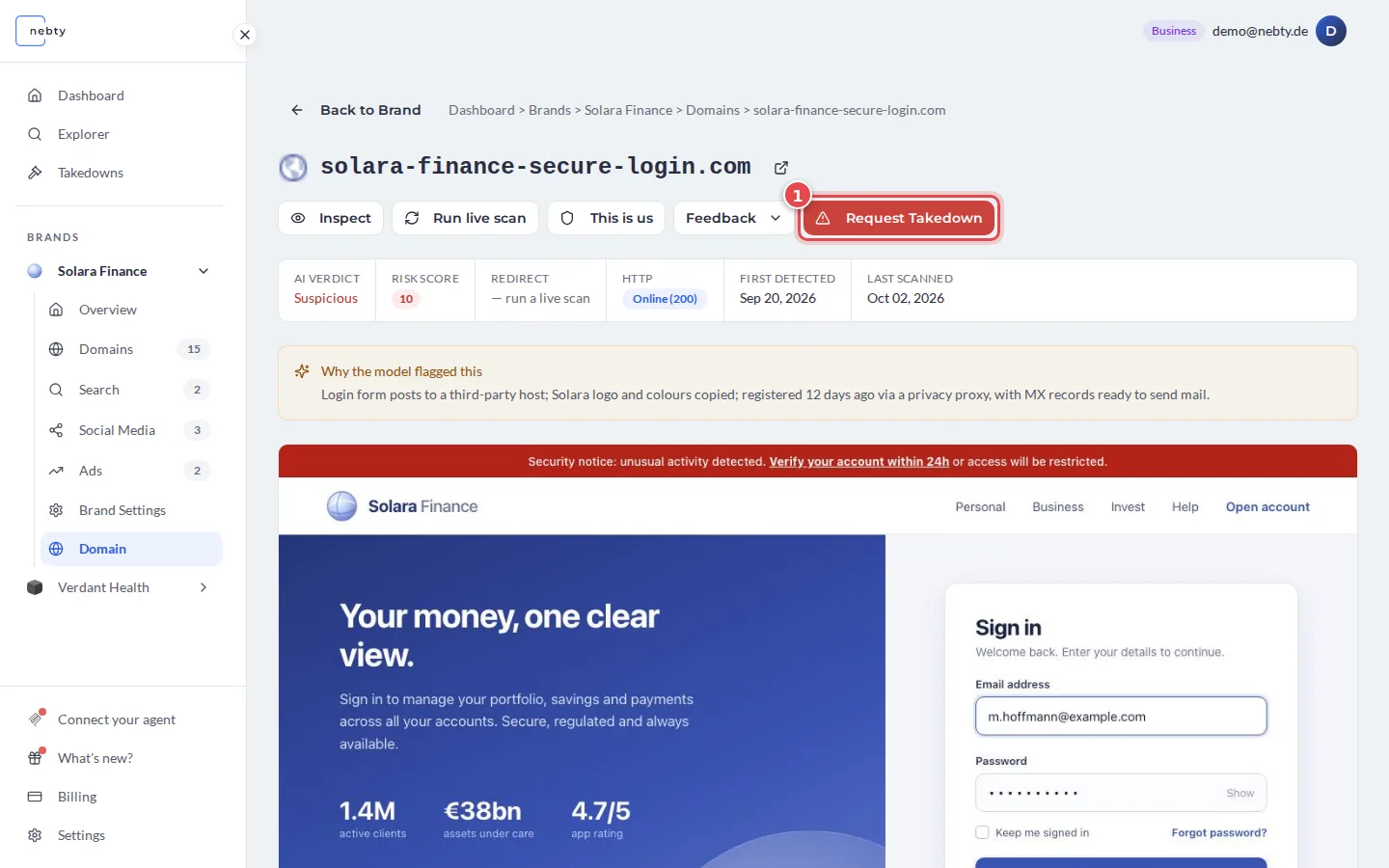
Start the takedown. Open the domain and select Request Takedown (1). On a social profile or an ad, mark the finding as Threat instead. Both open the takedown request form.
-
Complete and submit the request. The form already contains the domain’s details.
- (1) Website URL: the address of the site to take down. It is filled in for you.
- (2) Additional Comments: optional. Add anything that helps, for example that customers already received a phishing mail.
- (3) Tick the box to authorize nebty to act on your behalf. This is required.
- (4) Select Submit Takedown Request.
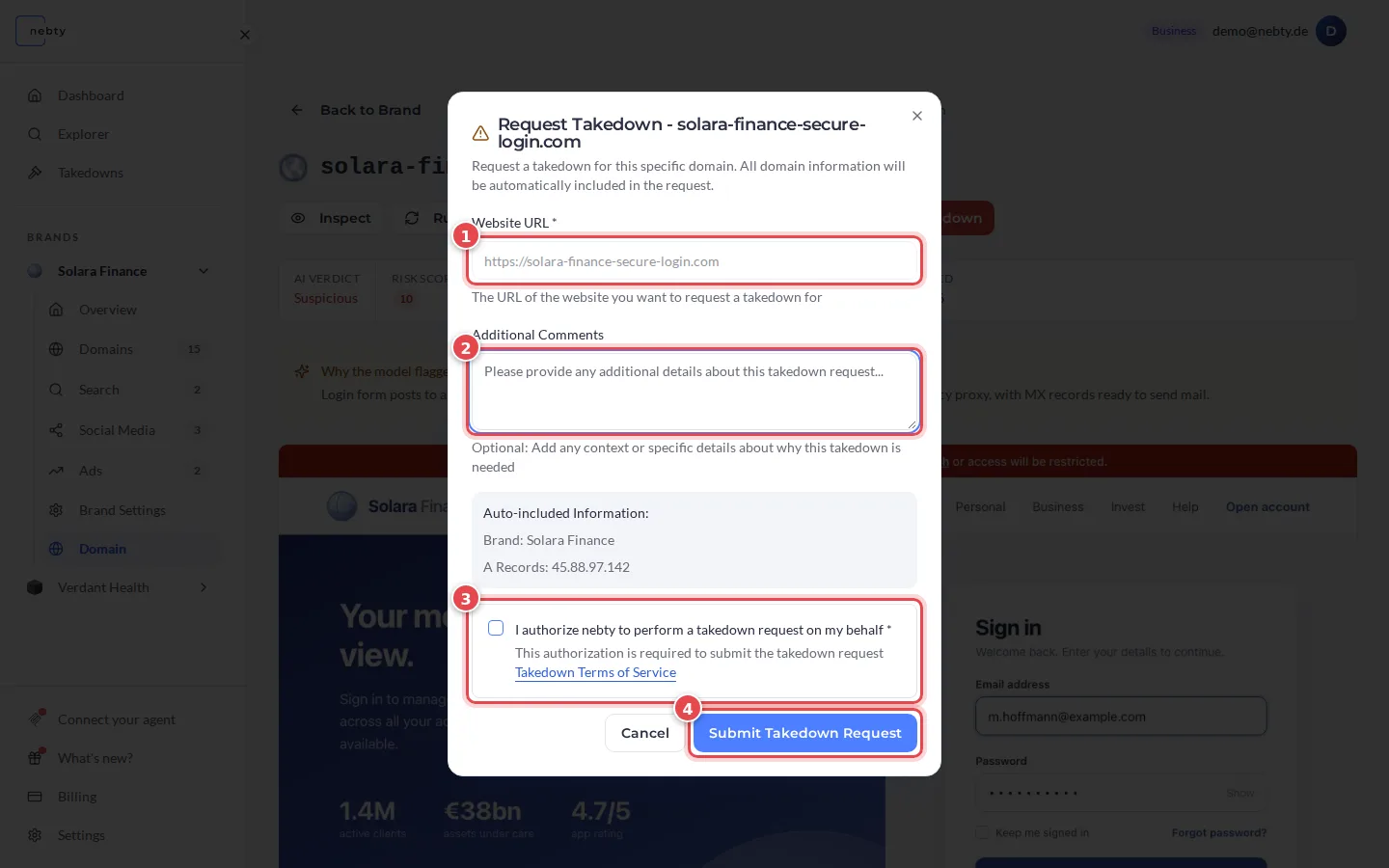
If you signed up on your own, the form also shows the price, for example “€400.00 per successful takedown, net plus VAT. You pay only if it succeeds.” Tick I order this takedown for €400.00 per successful takedown to confirm it. You cannot send the request without this tick. If the price changes while the form is open, the tick is removed and the form shows the new price, so that you can confirm it again. For the prices, see Price of a takedown.
If your brand has no monitoring, the form also shows the lower price with monitoring. A brand admin can start or reactivate monitoring from there.
After you send the request, the case starts as Open or as Pending Review. With Open, the nebty team starts work. With Pending Review, nebty checks the request first. The message after you send the request tells you which one applies. If you confirmed a price, you also get a confirmation email with the price. Its subject starts with “Your takedown order”. When work on a checked request starts, you get the email “Work has started on your takedown request”. If nebty does not accept the request, you get an email that starts with “Update on your takedown request”. A request that is not accepted costs nothing.
You can have only one active case for a website address. If a case for the same address is still Pending Review, Open, In Progress or Pending Response, the form shows “An open case already exists for this address.” Select View the open case to follow it. The address is the host name: a different path on the same site counts as the same address, but a subdomain is a different one.
-
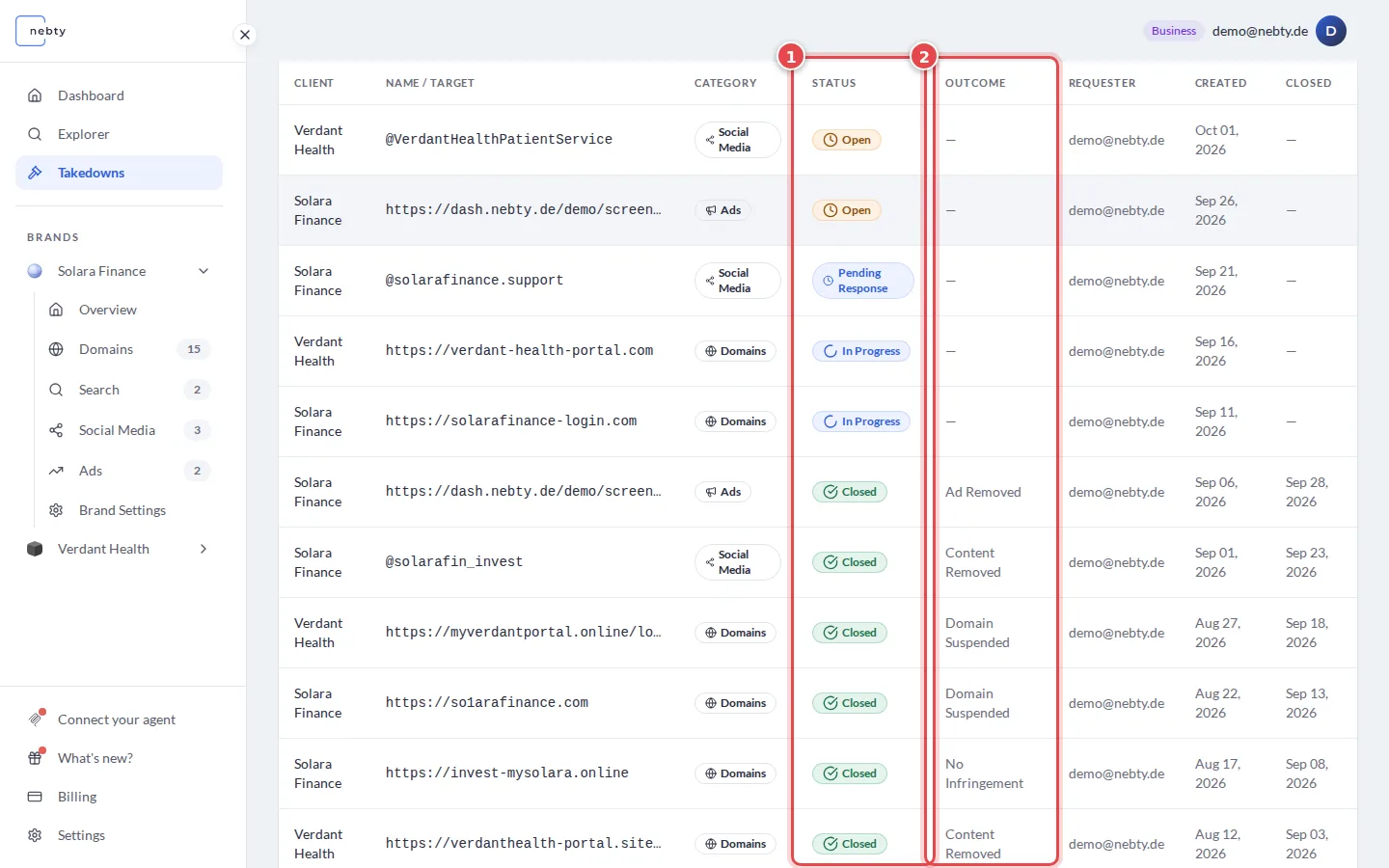
Track the case on the Takedowns page. Every case has a Status (1), for example Open, In Progress, Pending Response or Closed. Closed cases also show an Outcome (2).
Open a case to see its current status (1) at the top right.
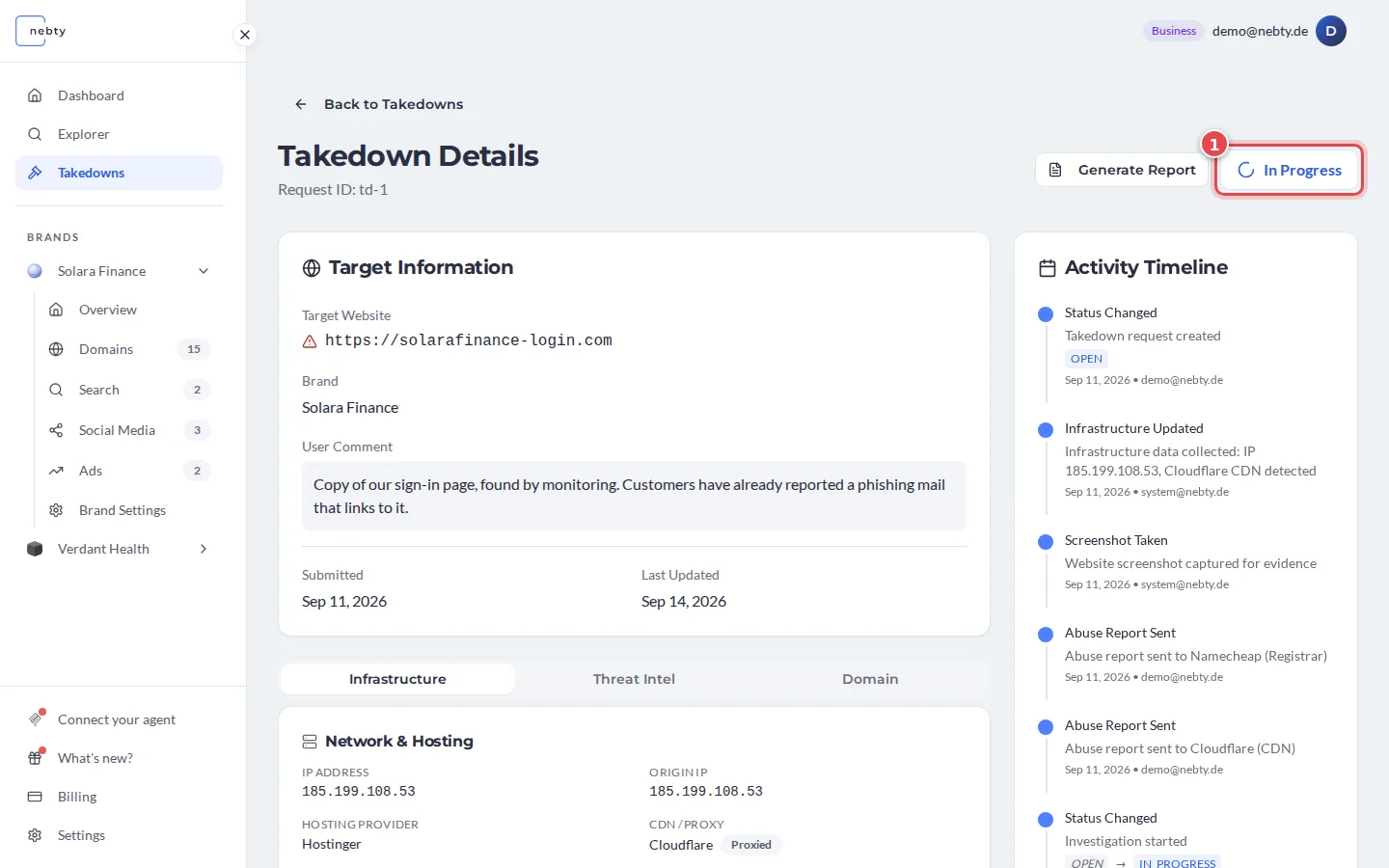
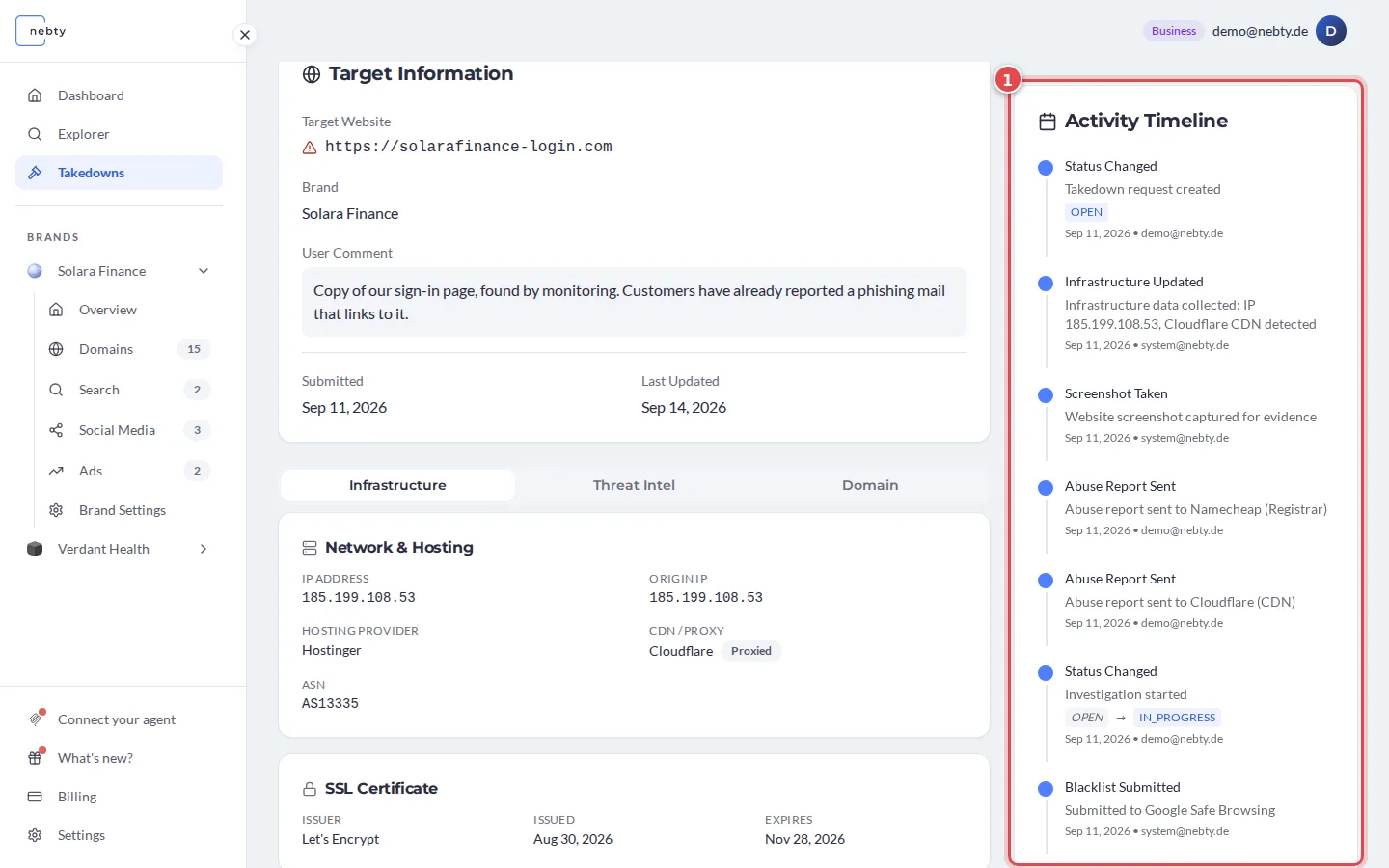
The Activity Timeline (1) lists everything that happened in the case: status changes, collected evidence, abuse reports and blacklist submissions.
-
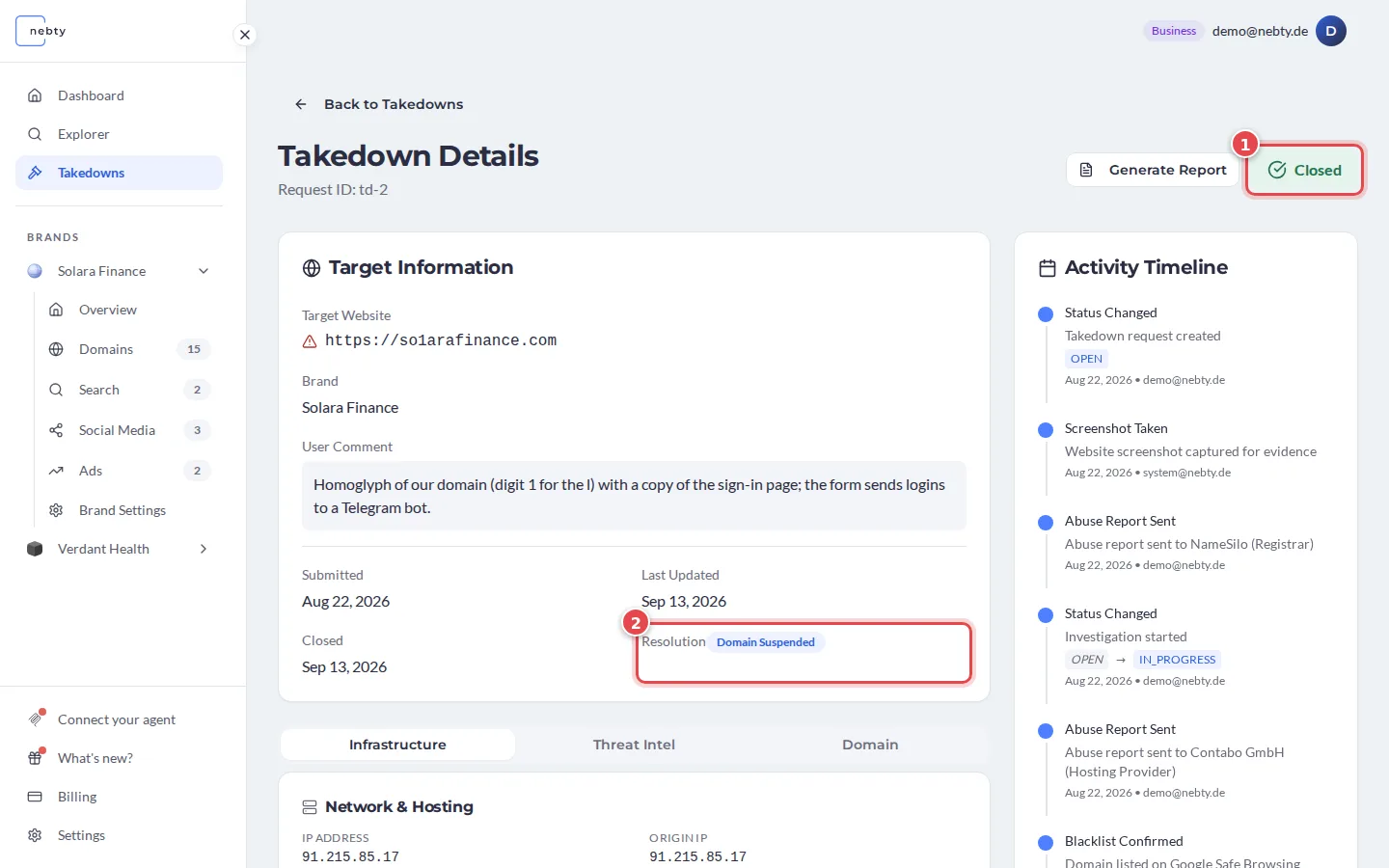
Wait for the case to close. A closed case shows the status Closed (1) and a Resolution (2) that tells you how it ended, for example Domain Suspended, Content Removed or No Infringement.
What happens next
Section titled “What happens next”Once a case is open, the nebty team works it: contacting the relevant registrar, host, or platform through the Abuse Contact, and filing a Blacklist Submission where that applies. You do not author either of these yourself; you simply follow their status on the case.
How long a case takes to close depends on the registrar, host, or platform involved, so there is no fixed timeline to expect. The Activity Timeline on the case is the most reliable way to see what has happened so far.
Related: Takedowns.
Track a takedown case in the demo(opens the public demo with sample data)